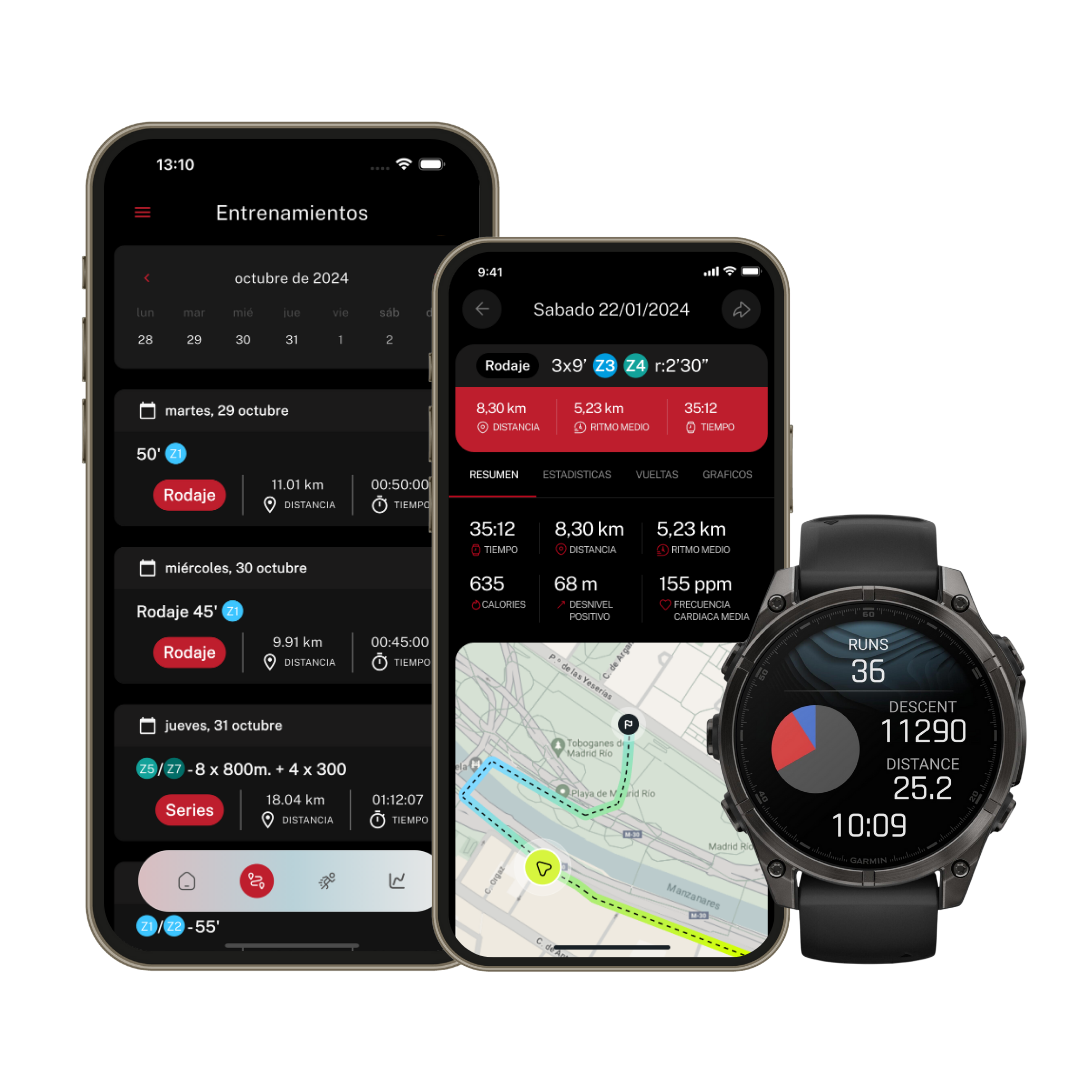
If you have problems connecting your Apple Watch with Runnify, here is our complete guide to help you solve the most common synchronization issues.
Check the basic requirements
Before reviewing other possible issues, make sure you meet these requirements:
- Your iPhone is running iOS 17 or later
- Your Apple Watch is paired to the same iPhone where you use Runnify
- The Runnify app is installed on that iPhone and you are logged in correctly
- Bluetooth is enabled and your watch appears connected in the Watch app
Is my Apple Watch compatible with Runnify?
Verify Apple Health permissions
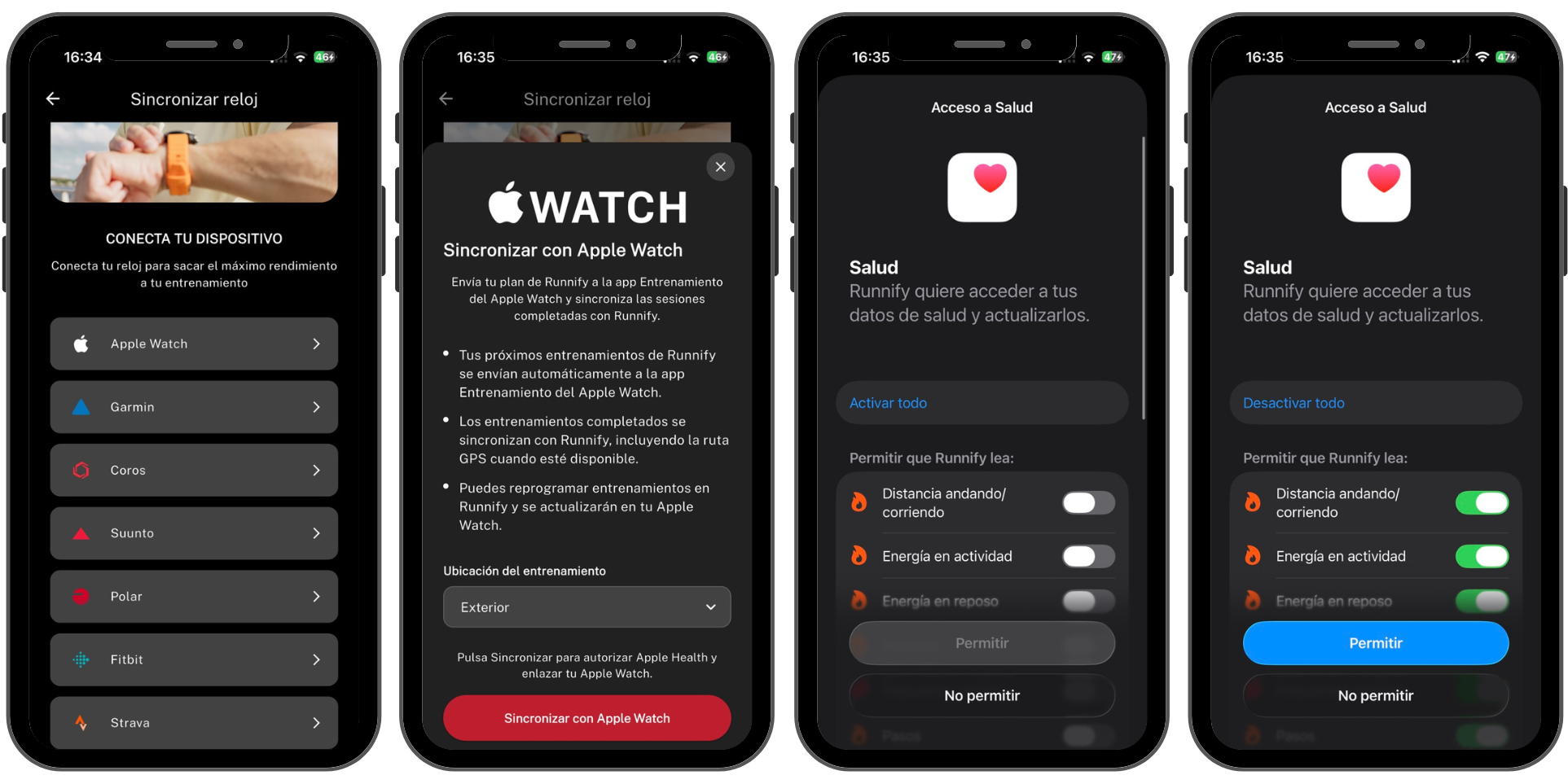
Apple Watch integration depends on Apple Health permissions. If you didn't grant them when linking your watch, or denied them by mistake, synchronization won't work.
To check them:
- Open Health app > User Icon > Apps > Runnify
- Enable all permissions needed for Runnify to read and write workout data
If you prefer to start fresh, unlink Apple Watch from Runnify and connect it again, accepting all permissions when prompted.
Check the connection in Runnify
If you have already linked your Apple Watch but still have issues, verify that sync is active:
- Open the Runnify app
- Select the dropdown menu in the top left corner
- Tap Sync your watch
- Verify that Apple Watch appears as a connected device
Can't see workouts on your Apple Watch?
Workouts sent from Runnify appear in the native Workout app on Apple Watch. If you can't find them:
- Open the Workout app on your watch and scroll through the available sessions
- Check that your watch is synced with your iPhone (open the Watch app on your phone)
- Force a new sync of a specific workout from the watch icon in the Runnify workout
- If that doesn't work, disconnect and reconnect Apple Watch in Runnify
- Restart your Apple Watch and iPhone if the problem persists
Workouts not returning to Runnify?
If you complete a session on Apple Watch but it doesn't appear in Runnify, check the following:
- Confirm Apple Health permissions are enabled for Runnify
- Make sure you finished and saved the workout correctly in the Workout app on your watch
- Wait a few minutes: synchronization may take a moment to appear in the app
- Open Runnify again to force a data refresh
Update iOS and watchOS
Some synchronization issues are caused by outdated system versions. Make sure you have the latest available updates installed on both your iPhone and Apple Watch.
Other issues
Still having problems using your Apple Watch with Runnify? You can contact us through Runnify contact. Please include your iPhone model, iOS version, Apple Watch model and the steps you have already tried. We'll be happy to help.