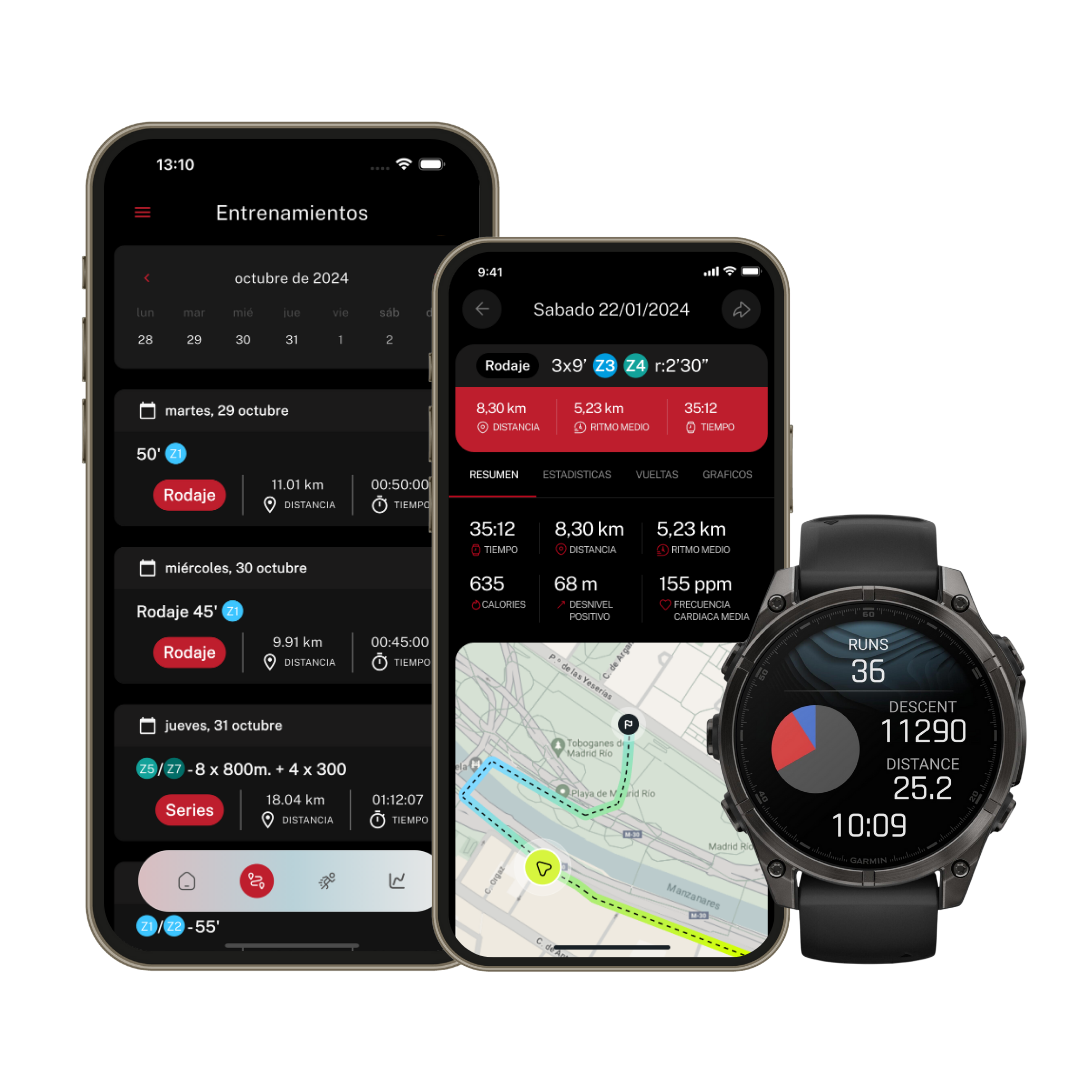
Sync your Apple Watch with Runnify and get the most out of your workouts
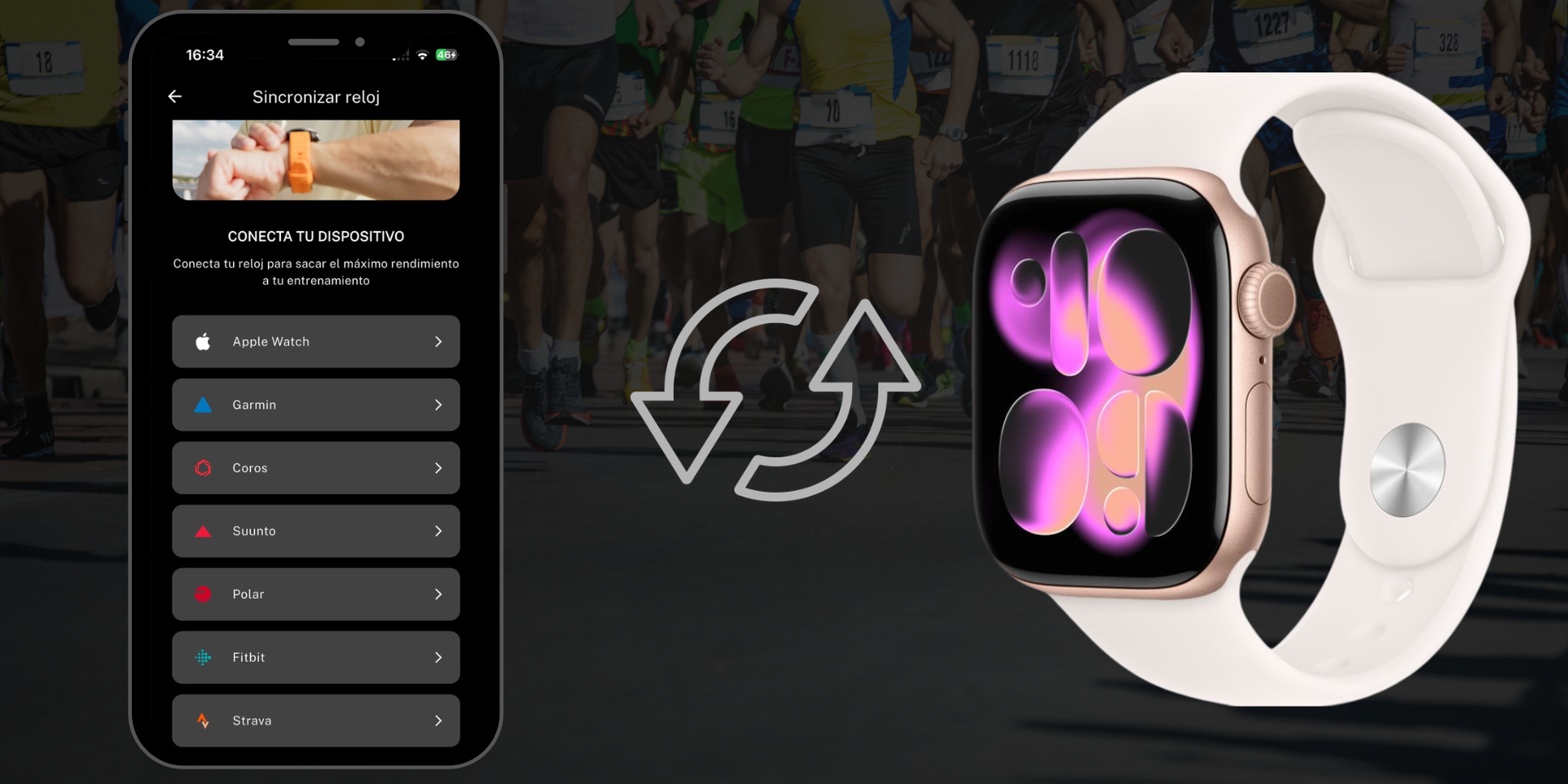
Why should I sync my Apple Watch with Runnify? If you do, you will be able to:
- Receive your Runnify workouts directly on your Apple Watch
- Follow each session step by step from the native Workout app on your watch
- Check paces, intervals and workout phases without looking at your phone
- Automatically send your session results back to Runnify through Apple Health
- Keep your plan updated when you change your goal or training level
All these benefits and more, just by syncing your Apple Watch with Runnify.
Requirements
Before linking your Apple Watch with Runnify, make sure you meet these requirements:
- Have an iPhone running iOS 17 or later
- Have your Apple Watch paired to the same iPhone you use for the Runnify app
- Have the Runnify app installed on that iPhone and be logged into your account
- Keep Bluetooth enabled and maintain a good connection between your iPhone and Apple Watch
Benefits of syncing your Apple Watch
Connecting your Apple Watch with Runnify will allow you to:
- Receive structured workouts from your plan on your watch without setting them up manually
- Follow each workout phase with alerts on your watch while you run
- Focus on your run without having to memorize distances, times or paces
- Automatically log your completed sessions in Runnify
- Track your progress with distance, pace, duration and heart rate data
How to link Apple Watch with Runnify
If you don't know how to link your Apple Watch with Runnify yet, follow these steps:
- Open the Runnify app and tap the three lines on the left > Sync your watch in the dropdown menu
- Activate the connection by tapping "Apple Watch"
- You will be asked for Apple Health permissions. You must allow them all so Runnify can send workouts to your watch and receive your session results
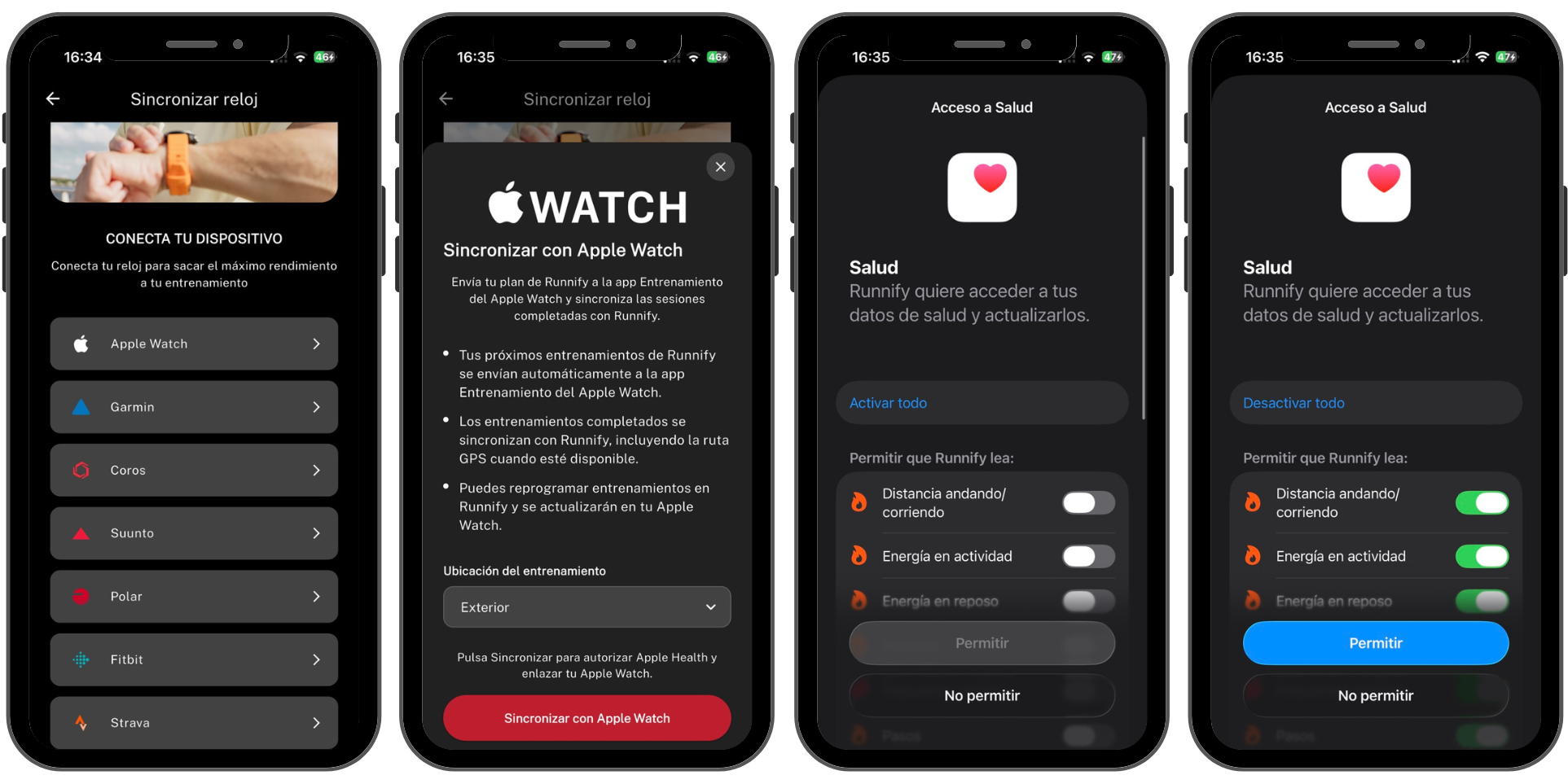
Once you complete these steps and grant the required permissions, your Runnify workouts will sync automatically with your Apple Watch.
Important: if you deny any Apple Health permission, synchronization may not work correctly. You can review and enable them at any time from Settings > Health > User Icon > Apps > Runnify on your iPhone.
How to start a Runnify workout on your Apple Watch
Workouts sent from Runnify appear automatically in the native Workout app on your Apple Watch. To start a session:
- Open the Workout app on your Apple Watch
- Scroll until you find the running workout sent from Runnify
- Select it and tap to start
- Follow the watch instructions throughout the session
You don't need to install any additional app on your watch: Runnify uses the workout app that already comes built into Apple Watch.
What happens if I change my training plan? Don't worry: Runnify will keep your workouts updated on your Apple Watch when you modify your plan or complete sessions.